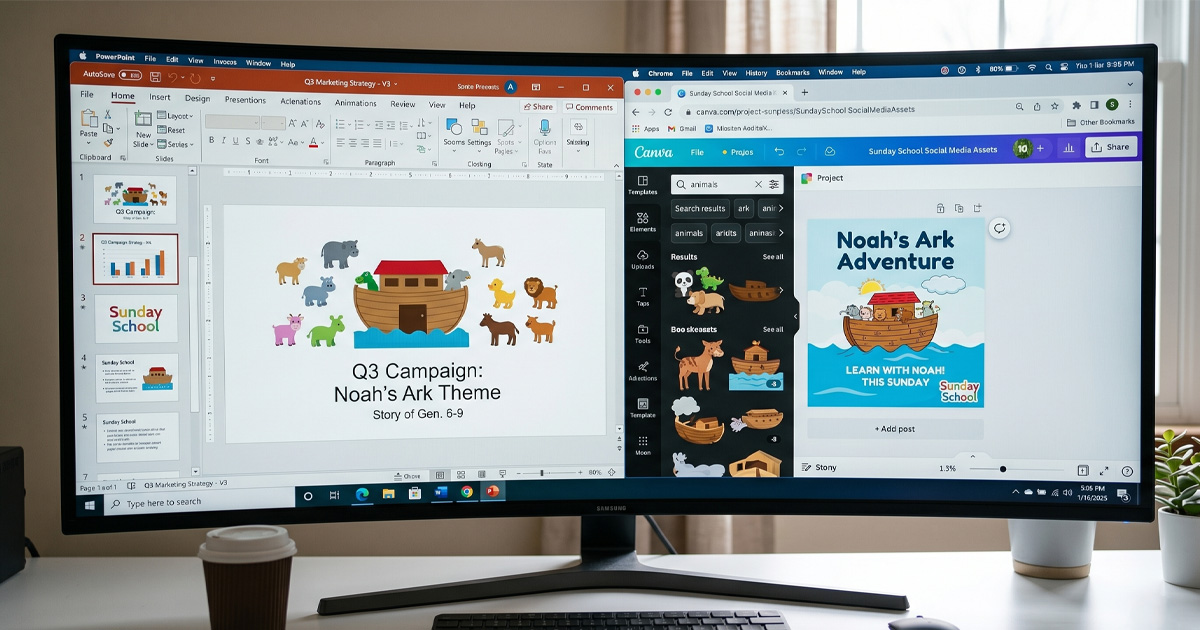
How to Edit Your SundayReady Slides in PowerPoint, Google Slides, and Canva
A beginner-friendly guide to making your generated slide deck feel like it was made just for your church.
One of the best things about the slide decks SundayReady generates is that they are yours to customize. Every file is a standard PowerPoint (.pptx) that you can open, edit, and make your own — no special software subscription required, no design experience needed.
This guide walks you through the most common edits people end up making, in Microsoft PowerPoint, Google Slides, and Canva. We will cover how to add your church name, swap out text, adjust fonts, add YouTube links to your countdown and worship slides, and a few pro tips that will make your slides look polished even if you have never touched a presentation tool before.
Before You Start
When you download your slide deck from SundayReady, save it somewhere easy to find — your Desktop or a dedicated Kids Ministry folder works great. Make a copy before you start editing so you always have the original to fall back on if something goes wrong.
Editing in Microsoft PowerPoint
Opening your file: Double-click the downloaded .pptx file and it will open in PowerPoint. You will see all 19 slides in the panel on the left side of the screen.
Adding your church name to the Welcome slide: Click on the Welcome slide in the left panel. Click anywhere on the slide to select a text box. If you want to add your church name, click Insert in the top menu, then Text Box, then click and drag on the slide to create a new text box. Type your church name, then use the font and size controls in the Home tab to style it however you like.
Editing existing text: Double-click any text on a slide to enter edit mode. You can then select all the text in that box, delete it, and type your own. This is useful if you want to simplify the teaching point text, adjust the wording of a discussion question, or add a note for your volunteers.
Changing font size: Select the text you want to change, then use the font size box in the Home tab. For slides that will be projected, we recommend a minimum of 24pt for body text and 36pt or larger for titles. Smaller text is hard to read from the back of a room.
Moving text boxes: Click once on any text box to select it (you will see handles around the edges). Then click and drag it to a new position on the slide.
Deleting a slide: Right-click the slide in the left panel and select Delete Slide. Do this if there is a section your service does not include.
Adding your logo: Go to Insert, then Pictures, then Picture from File and select your church logo file. Once it is on the slide, drag it to the corner and resize it by dragging the corner handles. Hold Shift while dragging to keep the proportions correct. Once it is on the slide, resize and place wherever you like, but make sure it is visible on whichever slide background you picked. If you want to add the logo to all your slides at once, click on View from the menu bar, then click Slide Master. It will open a new window with just a white background. Perform the same steps from above to Insert your logo, place it wherever you like, then click the big red X in the menu bar that says Close Master View. Then make sure the logo is where you want on your slides. If it is not, just reopen the Slide Master and adjust.
Adding a YouTube video: Click on the slide you want to add the video to, then click on Insert from the top menu bar, then select Online Movie. In the pop up box, paste in the URL from your video and click Insert. The video thumbnail will appear on the slide — just resize to fit the slide however you like. In presentation mode, click the video and it will play directly on the slide. If you do not have wifi in your classroom, see the section below for other options.
Saving your work: Press Command and S on Mac or Ctrl and S on Windows to save. If you want to keep the original file unchanged, go to File, then Save As and give the edited version a new name.
Editing in Google Slides
Google Slides is a great option if you do not have Microsoft Office, prefer to work in a browser, or want your slides automatically saved to the cloud so you can access them from any device. It is completely free and works on any computer.
Importing your PowerPoint file into Google Slides:
- Go to drive.google.com and sign in with your Google account
- Click the New button in the top left corner, then select File Upload
- Find your downloaded .pptx file and upload it
- Once uploaded, right-click the file in Google Drive and select Open With, then Google Slides
- Google Slides will convert the file and open it for editing
Note: The conversion works well for most slides but some fonts or complex layouts may shift slightly. Always review every slide after importing before Sunday.
Editing text in Google Slides: Click directly on any text to select the text box. Double-click to enter edit mode and type your changes. The toolbar at the top gives you font, size, bold, italic, and alignment controls.
Changing font size: Select your text, then click the font size box in the toolbar. At least 24pt for body text, 36pt or larger for titles.
Moving and resizing elements: Click once on any text box or image to select it, then drag to move. Drag corner handles to resize. Hold Shift while resizing to keep proportions.
Deleting a slide: Right-click the slide thumbnail in the left panel and select Delete.
Adding your church logo: Go to Insert, then Image, then Upload from Computer and select your logo file. To add your logo to every slide, click View in the top menu, select Theme Builder (or Edit Master in some versions), then click the top slide and add your logo where you want it and it will appear on every slide.
Adding YouTube video links: Click the slide you want to add the link to, click Insert from the top menu, and select Video. From there, just paste in the link from your video, click Insert, and it will appear on your slide.
Saving and downloading: Google Slides saves automatically. To download, go to File, then Download, then Microsoft PowerPoint (.pptx).
Presenting from Google Slides: Click the Slideshow button in the top right corner to enter full-screen presentation mode.
Editing in Canva
Canva is a browser-based design tool that many volunteers prefer because it is visual, intuitive, and has a large library of free graphics and photos.
Importing your PowerPoint file into Canva:
- Go to canva.com and sign in or create a free account
- From the Canva home screen, click Create a Design
- Look for Import File or Upload
- Select your .pptx file from your computer
- Canva will import each slide and convert it
Note: Review every slide after importing.
Editing text in Canva: Click directly on any text to select it. Double-click to enter edit mode. From here you can change the font, color, size and effects on the text. If you are using the free version of Canva, pay attention to selections that have the premium icon — it will not let you use those.
Adding images in Canva: Click the Elements tab in the left panel to search Canva's free library. Click on an image you want to add, then move and resize it to wherever you like on the slide. This is an easy way to add interest to slides, and Canva has a ton of options to browse through.
Adding your church logo: Click Uploads in the left panel, then Upload Files. Once your logo appears here, double click it to add it to the slide, then move and resize to fit.
Adding a YouTube link in Canva: Click More in the left panel and search for YouTube. Search for your video by name or paste the URL from YouTube. In presentation mode the video will play directly on the slide.
Downloading your edited slides: Click Share, then Download, then PowerPoint (.pptx) or PDF.
What To Do If You Cannot Stream YouTube
Not every church has reliable WiFi. Downloading the video in advance and inserting it as a local file is the most reliable option.
Downloading YouTube videos: YouTube does not officially support downloading but several free tools are commonly used:
- 4K Video Downloader: a free desktop app for Mac and Windows with a simple interface
- yt-dlp: a free command-line tool for Mac and Windows (more technical but very reliable)
- Online tools: websites like y2mate.com or savefrom.net let you paste a YouTube URL and download directly
Always make sure you have permission to use the video content. Many worship artists explicitly allow churches to use their videos in a non-commercial church setting.
Inserting a downloaded video in PowerPoint:
- Go to the Countdown or Worship slide
- Click Insert, then Video, then Video on My PC (Windows) or Movie (Mac)
- Find your downloaded video file and click Insert
- Right-click the video and select Start Automatically
Inserting a downloaded video in Google Slides:
- Go to Insert, then Video, then Upload from Drive
- Upload your video file to Google Drive first, then insert from there
Inserting a downloaded video in Canva:
- Click Uploads in the left panel
- Upload your video file
- Drag it onto the slide
Quick Reference: Most Useful Edits by Slide
- Slide 1 — Countdown: Add your countdown video link or embed the video directly
- Slide 3 — Welcome: Add your church name and this week's date
- Slides 7 and 8 — Worship: Add your worship video links or embed downloaded videos
- Slides 9 through 11 — Teaching Points: Simplify or expand text to match how your teacher naturally speaks
- Slide 13 — Craft Time: Update the supplies list if substituting any materials
- Slide 15 — Discussion Questions: Add or remove questions based on available time
- Slide 19 — See You Next Week: Add your service time or next week's series title
A Few Honest Tips
The slide generator is limited to fonts that can be used natively in editors like PowerPoint. If we were to use fonts that you do not have installed on the computer you are teaching from, the text would not render correctly. But all text on the slides can be changed to whatever you want if you so desire.
Keep it simple. SundayReady generates slides that are ready to use — only change what genuinely needs to change for your specific church context.
Test your slides on the actual projector before the service starts. Text that looks fine on your laptop might be hard to read from thirty feet away.
Save early and save often.
You Do Not Have to Edit Everything
If you have fifteen minutes on Saturday night, open the deck, read through it once, verify the scripture, and call it done. That is enough. The goal is Sunday morning, not a perfect slide deck.
Ready to make Sunday mornings easier?
SundayReady generates complete kids ministry curriculum in minutes — lesson plan, slides, word search, and coloring sheet.
Try SundayReady Free →